
Video Templates: Pick a template. Get a finished video.
Pick a ready-made template, add your photo or clips, change the text, and get a finished video. Over 30 AI video templates, ready-made edits for your own footage, photo templates and one-tap camera moves.
25 free credits to start. No card needed.
Made with Qevio templates
Real template results and scenes from Qevio.
Ready-made edit: opening shot, close-up details with short callouts, and a closing call to action.
Ready-made edit: six clips or photos joined with smooth transitions, a title and optional place names.
Ready-made edit: your headline, three short benefits over your own media, and a call to action.
Ready-made edit: a 12-second opener cut to the beat, eight photos or clips with a colour snap, one big word per cut, then your name and logo.
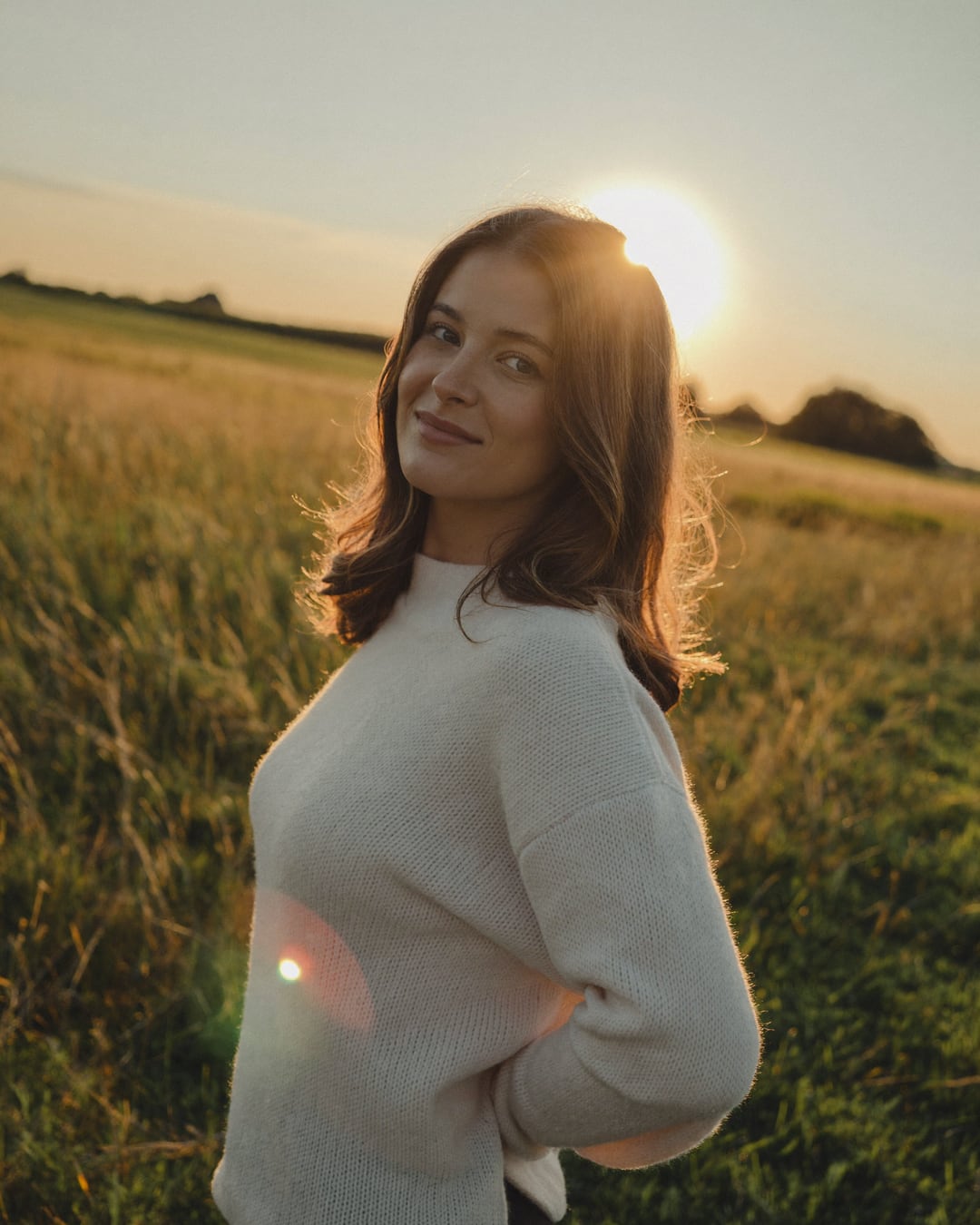
Photo template: warm sunset backlight in a meadow.
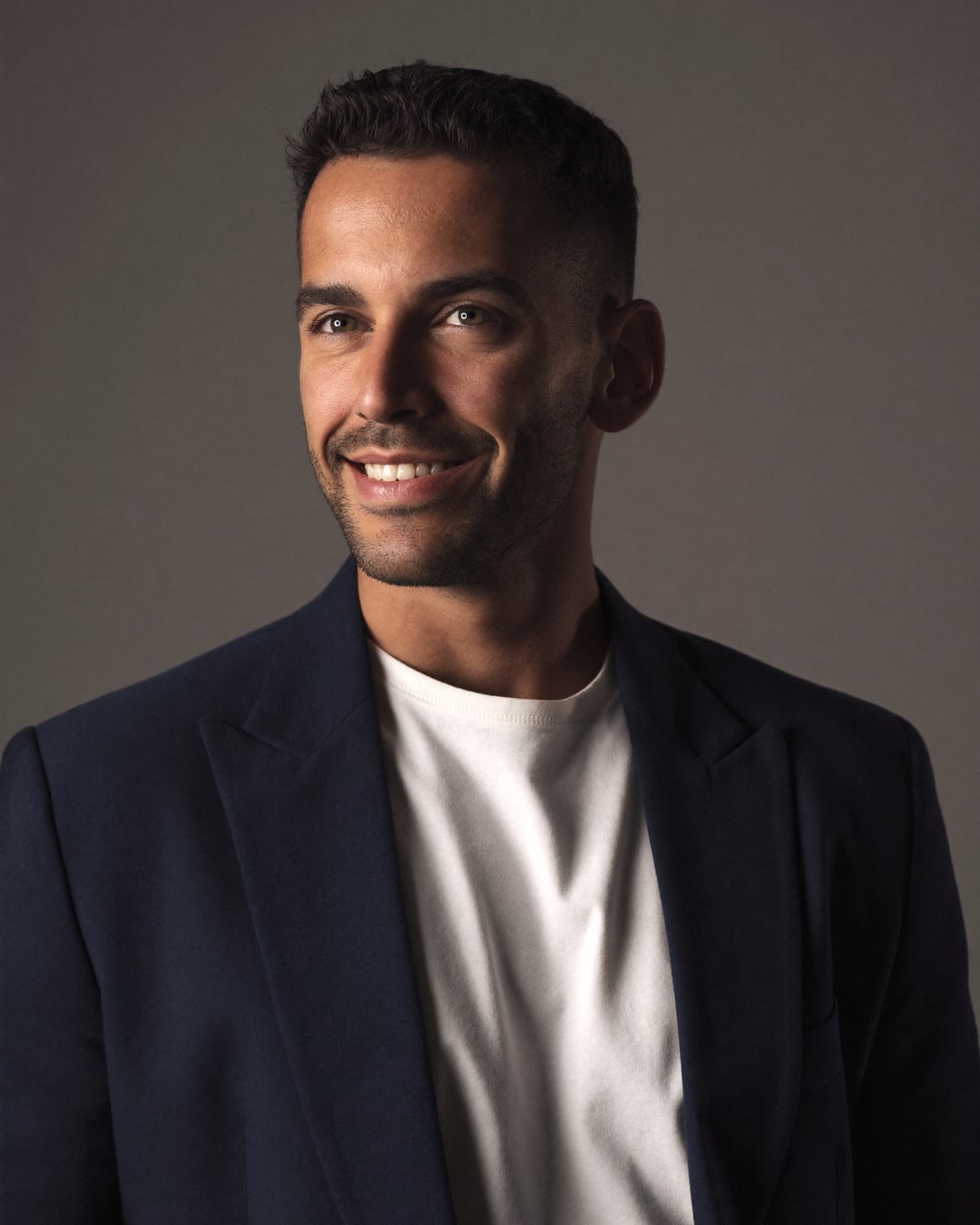
Photo template: clean grey backdrop, soft key light.
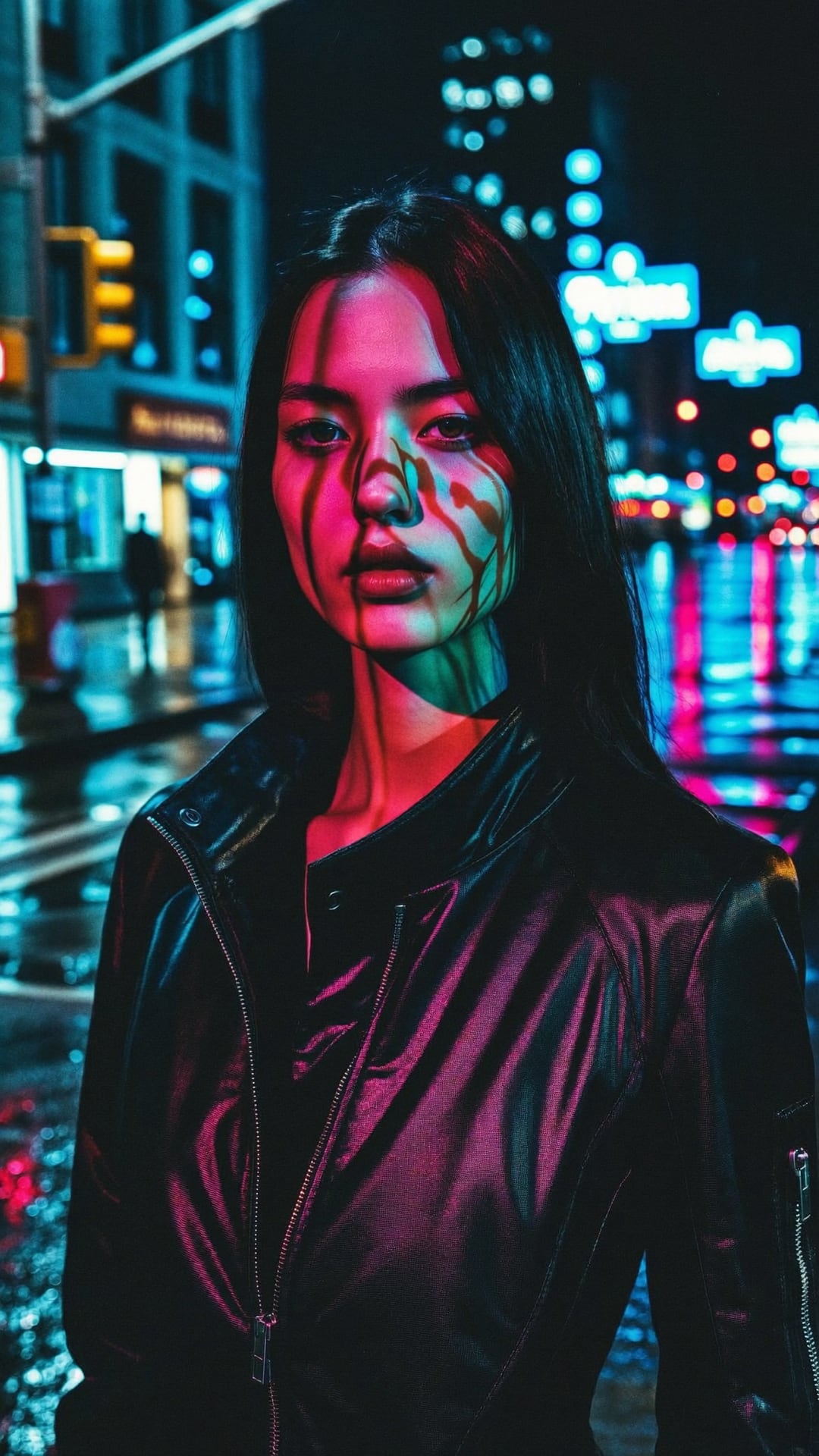
Photo template: rainy street with neon reflections.
Ready-made looks for your video
Made with Qevio · see allWhat are Qevio templates?
Qevio templates are ready-made video and photo formats. AI video templates turn one photo (or one of your AI influencers) into a 2 or 3-shot vertical video with transitions, a colour look and text you can rewrite. Ready-made edit templates put your own photos and clips into a designed edit. Photo templates place you in a finished photo scene, and camera presets add one camera move to a photo. You see the credit price before anything runs.
Updated
What you can make
AI video templates
Over 30 multi-shot templates in 8 categories, from Outfit reveal and Product launch to Travel recap and Birthday wishes. Qevio makes 2 or 3 short AI clips from your picture and joins them into one 9:16 video.
Ready-made edits
Designed edits for your own footage (Beta): Product Reveal, Travel Highlights, Business Promo and the Snap Opener. Drop your photos or clips into the slots, change the text and export in 9:16, 1:1 or 16:9.
Photo templates
Nine original photo scenes, such as Golden Hour, Studio Headshot, Neon Night and Café Morning. Upload one photo of yourself and get a new picture in that scene with your own face.
Camera presets
One-tap camera moves for a single photo: zooms, dolly pushes, orbits, drone and handheld moves, in 5, 10 or 15-second clips, with optional background music.
What people use it for
Product ads
Product launch, Flash sale, UGC review and Luxury ad templates turn one product photo into a short vertical ad.
Daily social content
POV hook, Day in my life and Snap switch give you trend-style Reels, Shorts and TikToks without editing.
Seasonal campaigns
Birthday wishes, New year and Thank you templates for greetings, holidays and customer thank-yous.
Store listings
Use the Product Reveal edit with your own product photos and clips for a clean listing or launch video.
Small businesses
Meet the founder, Event promo and Business Promo introduce your team, your event or your service.
UGC-style clips
Creator-style templates with an AI influencer or your own photo, for testimonials and try-ons.
How it works
- Step 1
Pick a template
Open Presets and browse by category, or search. Each template shows an example and what it makes.
- Step 2
Add your photo
Add one photo (or pick one of your AI influencers) for an AI video template, or your own photos and clips for a ready-made edit.
- Step 3
Set the direction
Rewrite the template's text, choose a shape where the template allows it, and add music if you like.
- Step 4
Check the estimate
The credit price is on the button. Nothing is charged until you press it, and credits come back if the video can't be made.
- Step 5
Generate and download
Qevio makes the shots and joins them with the template's transitions and text. Download the MP4 from History.
Four kinds of templates
AI video templates are multi-shot formats. Each one is a recipe of 2 or 3 moves from Qevio's motion library, such as a walk-in, a spin and a pose. Qevio makes a short AI clip for each shot from your photo, then joins them on its own server with the template's transitions, colour look and animated text, which you can rewrite. The result is one vertical 9:16 video, ready for Reels, TikTok and Shorts.
Ready-made edits work the other way round: no AI makes the footage. You put your own photos and clips into the template's slots, change the text, choose 9:16, 1:1 or 16:9, and Qevio renders the finished edit. The same template and the same media always give the same result. These are new, so they carry a Beta tag.
Photo templates are original photo scenes made by Qevio. Upload one clear photo of yourself and press Generate; you get a new picture in the template's pose, outfit, lighting and background with your own face. Camera presets add a single camera move to any photo, as a 5, 10 or 15-second clip, with optional background music from Qevio's music beds or your own track.
The template categories
AI video templates come in 8 categories: Fashion & Beauty (Outfit reveal, Runway night, Glow up, OOTD), Product & Ads (Product launch, Flash sale, UGC review, Luxury ad), Travel (Travel recap, Adventure trailer, City break, Summer road trip), Lifestyle & Vlog (Day in my life, Morning routine, Fitness motivation, Self-care Sunday), Social Trends (POV hook, Dance challenge, Meme reaction, Snap switch), Cinematic & Story (Movie trailer, Hero intro, Noir mystery, Dreamscape), Celebrations (Birthday wishes, Thank you, Love story, New year) and Business & Promo (Meet the founder, Event promo and more).
Photo templates cover Portrait, Professional, Lifestyle, Travel and Seasonal scenes. Every template and scene is Qevio's own: our own names and pictures, with no celebrity looks and no copyrighted characters.
Templates or a prompt?
Use a template when you want a proven format fast: you don't write a prompt, and the edit, transitions and text are already designed. Use the AI Video Generator when you want full control over the scene, the length and the model, or a video that doesn't fit a template. Many people do both: a template for the quick daily post, and a prompt for the hero video of a launch.
If you already have footage, the Auto Video Editor cuts it for you and adds subtitles, music and Ready-made looks such as a fast intro, label titles and Smart subtitles.
What to know before you start
Only upload photos of people who have agreed to it, and follow the Acceptable Use Policy. AI clips can come out differently from the example, so check the result before you post it; if a shot fails, the credits for the template come back. Templates make vertical 9:16 videos unless the template says otherwise, and Qevio never posts for you: download the file and post it yourself.
Write a prompt that works
Plain words are enough. These examples show the kind of detail that gets the best results.
Tips for better results
- Use a sharp, well-lit photo where the face or product is clearly visible. The template can only work with what's in the picture.
- For people templates, a full-body photo works best for walk-ins and outfit moves; a head-and-shoulders photo suits close-ups.
- Keep template text short. It's animated on screen, so a few words read better than a sentence.
- For ready-made edits, put your strongest clip in the first slot. The opening seconds decide whether people keep watching.
- Try two templates with the same photo and keep the one that fits your brand.
Specs at a glance
- AI video templates
- 34 templates in 8 categories; 2 or 3 shots of 5 seconds each; 9:16 vertical
- Ready-made edits
- Product Reveal, Travel Highlights, Business Promo and Snap Opener (Beta); 9:16, 1:1 or 16:9; 1080p, 30 fps MP4
- Photo templates
- 9 original scenes; 4:5, 9:16 or 1:1 depending on the scene
- Camera presets
- 5, 10 or 15-second clips from one photo; optional background music
- Input
- One photo or an AI influencer (AI templates); your own photos and clips (ready-made edits)
- Price
- Paid with credits; the price is on the button before you generate
Questions
Browsing is free. Making a video or photo from a template uses credits, and the price is shown on the button before you press it. The Free plan includes monthly credits, so you can try a template without a card.